The SDL Wizards in D2nc take advantage of D2nc version 2's SDL extensions of variables and functions.

A complete list of available wizards and sample output can be seen in the Wizard Directory
Each wizard is assigned its own button. If there are more wizards than can fit on the screen , the list can be scrolled top to bottom. To find a particular wizard, start typing any sequence of letters you know occur in the wizard name and the list will dynamically update and only show wizards containing that string of letters. You can click the Clear button to remove the filter and show all the wizards.
Wizards are easy to create if you have worked with a programming language and understand XML. Refer to the guide to creating your own wizard. Click on a wizard in the selection screen to load the parameter entry screen.
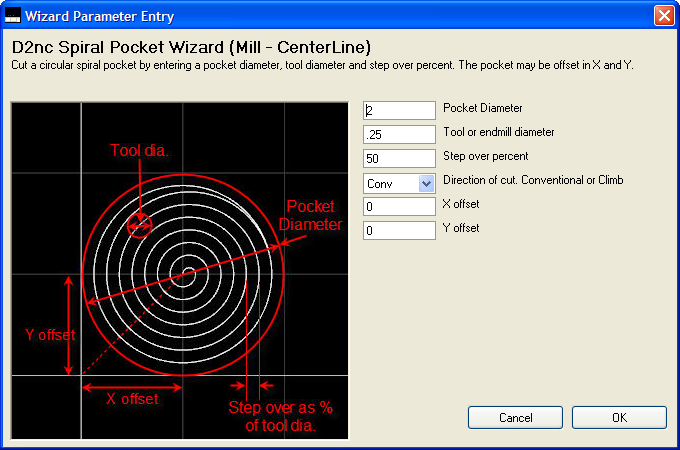
Enter the desired values for the available parameters of the wizards you selected. The wizard may display a graphic illustrating the basic wizard function and the meaning behind the individual input parameters. Once you satisfied with the input, click the "OK" button to generate the SDL into the shape description area.
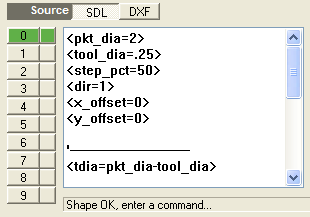
The SDL program in the shape description generated by the wizard is a live program and may be adjusted before proceeding to set the constraints and define a tool path. The convention for wizards is to assign the value input to a variable, one input parameter per line. The input variables are separated from the static part of the SDL program by dashed comment line. You may adjust the values of the variables to make changes to the displayed shape or you can re-run the wizard to input new values.


