Using D2nc - Basic Concepts
Top  Previous  Next

Understanding a few basic concepts will go a long way to helping you use D2nc.

There are three stages to producing g-code with D2nc.
1.Describe a shape or import and extract a shape from a DXF file.  
2.Set machine, material and tool constraints.  
3.Define operations which are added to a machine queue.  

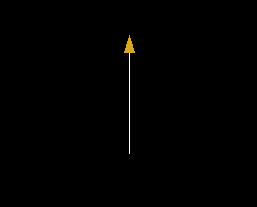
D2nc is based on a simple Shape Description Language (SDL). When you initially load D2nc, you will see an arrow in the black shape display. You type commands in the shape description area and the result is reflected in the display area.

The process of describing a shape can be thought of as navigating along a course or driving a vehicle. Each move or turn you make is a continuation from your last move.

The current heading or direction is the key to describing a shape. The heading indicator is the gold arrowhead in the shape display area. It is used as an aid to track the current heading. The arrow indicates the point at which the next command will start and direction it which it will go.


Initial display
clip0099

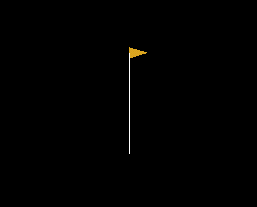
Enter the following in the Shape Description Area:
d1   
which means draw a line 1 unit long.
clip0100

Now enter:
h90   
which means change heading 90 degrees right
clip0101

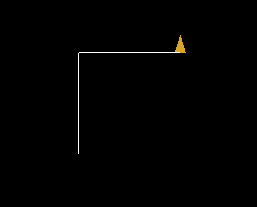
Continue to enter the following:
d1h-90   
which means 
draw a line 1 unit long then change heading 90 degrees left
clip0102   

As can be seen from this simple sequence, the D1 in step 2 and the D1 in step 4 both drew a line in the direction of the heading indicated by the yellow heading indicator.

Now consider that the shape represents the outline of a machine part in plan view. This is converted into g-code by defining machine operations (contouring, drilling ...) in subsequent steps. Operations can be performed on single or multiple shapes that are added to a machining queue. The queue is processed into g-code and loaded into Mach3 with a single click of the "Generate G-Code to File" button.